





































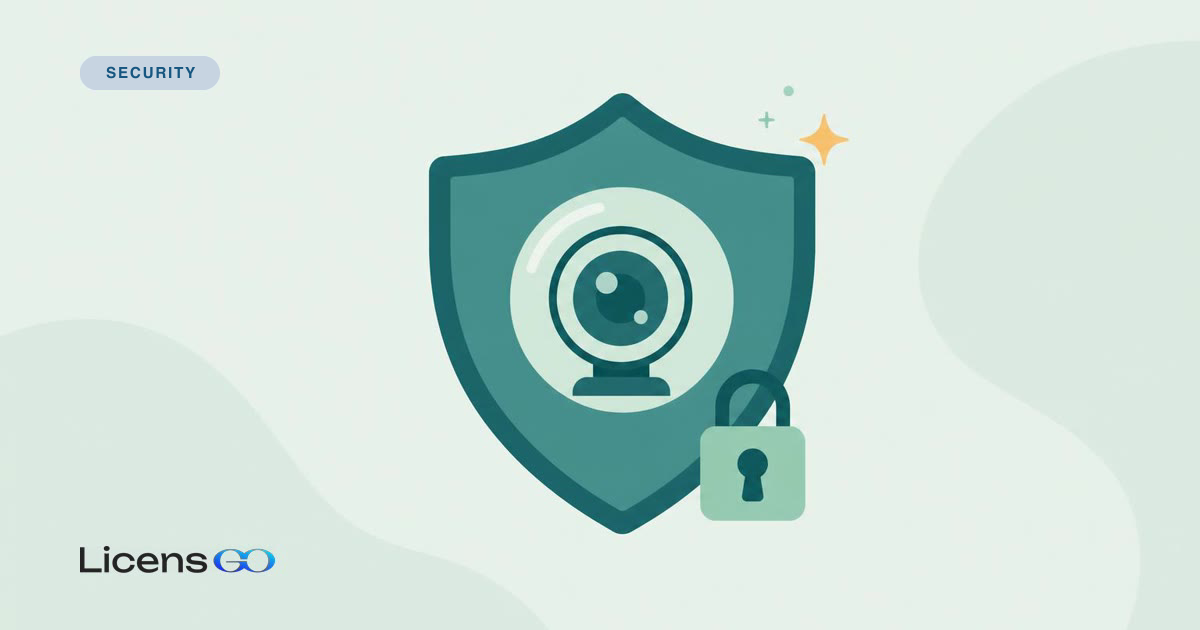
If you use a Windows laptop or PC, protecting the webcam and microphone is a straightforward way to reduce spying risk. This guide lists quick checks and practical actions — from software permissions to physical covers — that you can perform in minutes. If you purchased software or security tools from Licensgo, you can combine these steps with up-to-date antivirus and system updates for better protection.
1What to check first — quick overview
Start with three quick checks: app permissions, system and device updates, and a physical cover for the camera. These steps stop the most common attack vectors and are simple to verify.
- check app permissions;
- update drivers and firmware;
- use a webcam cover and disable the microphone when you don't need it.
Do these three checks in order: permissions, updates, physical cover — you can finish them in under 10 minutes.
2Step 1 — review app permissions in Windows
Open Settings > Privacy & security > Camera (and Microphone) on Windows 10 Professional or Windows 11 Professional. Disable global access if you don't use the device, then review the list of apps with permission and revoke any you don't recognise.
Also check browser permissions: browsers request camera/microphone access on a per-site basis. Revoke persistent permissions from sites you no longer use.
3Step 2 — update drivers, firmware and apps
Camera vulnerabilities often rely on outdated drivers or firmware. Check Windows Update and the camera manufacturer's site for firmware and driver updates. Also keep conferencing apps (for example Microsoft Teams, Zoom) up to date.
Prefer official drivers from the device maker, not generic packages from unknown sources.
4Step 3 — physical and behavioural measures
A simple physical cover blocks any camera regardless of software control. Use a purpose-built slider or a small piece of opaque tape. For microphones, use a hardware mute switch if available or disable the device when not needed.
- physical webcam cover (slider or tape);
- use the microphone's hardware switch where available;
- connect external microphones only when needed and disconnect them afterwards.
5Monitor access and act quickly
Windows shows which apps have camera/microphone permission and recent usage in Settings. If you notice unexpected activity, revoke permissions, uninstall the app and run a full scan with an antivirus like ESET NOD32 or Norton 360 Deluxe.
For persistent or unexplained access, disable the device in Device Manager and consider resetting your system or restoring from a clean backup.
If an app used your camera without permission, revoke access and run an antivirus scan before re-enabling devices.
6Backup and encryption for recordings
If you store recordings, keep them on an encrypted volume or use file-level encryption. Back up important files regularly and keep backups offline when possible to avoid tampering.
For quick, practical guidance on backups and on choosing between full-disk and file encryption, see our practical backup strategies and our comparison of disk vs file encryption.
- use regular backups and offline copies;
- store recordings on encrypted volumes or in encrypted files.
7Resources and support from Licensgo
If you need an antivirus licence or help configuring your protection, Licensgo offers genuine licences and support in English by email or through our contact form. Popular options in our catalogue include ESET NOD32 and Norton 360 Deluxe for real-time protection and alerts.
Ask our support team to help you create a recovery plan and a safe backup routine once your devices are secure.