
























CategoryPDF editors
Operating system Windows
WindowsManufacturerNitro
Versions14 or 13
PlatformWindows
LicensingPerpetual for the selected version
DeliveryDigital

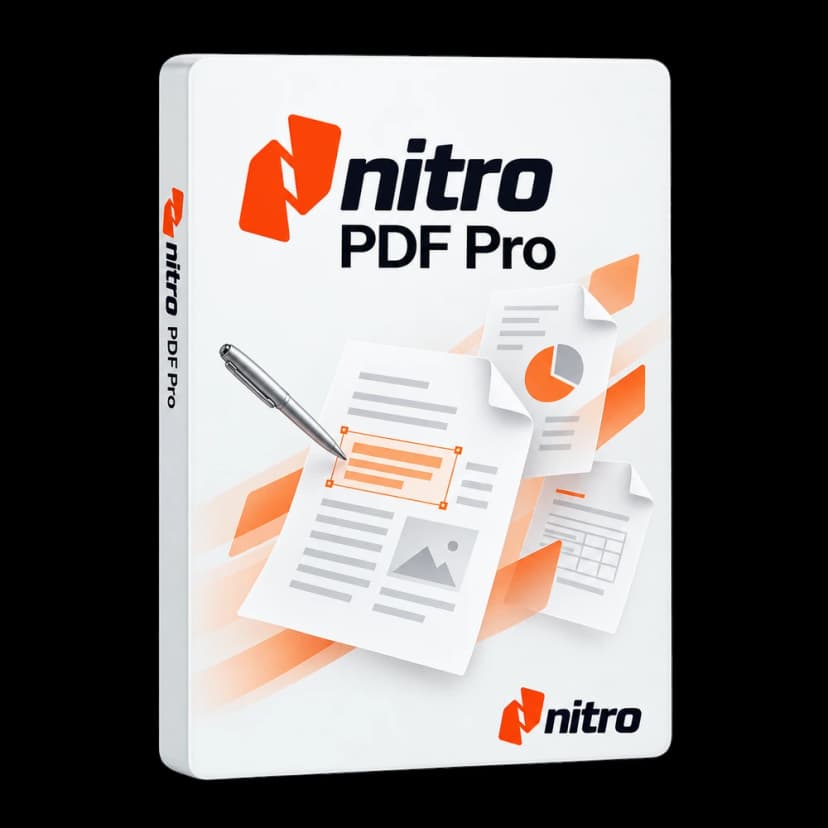
Nitro PDF Pro
EditionEditions offer different features and levels: compare them and choose the one that suits you best.
Program versionThe perpetual licence covers the selected version. Version 13 is an older release: check compatibility before purchasing.
Operating systemOperating system compatible with this product edition.
Licence durationLicence or subscription validity period.
CategoryPDF editors
Operating systemWindows
WindowsManufacturerNitro
Versions14 or 13
PlatformWindows
LicensingPerpetual for the selected version
DeliveryDigital

Turn PDFs into documents you can work on
Nitro PDF Pro for Windows supports document work from the first correction to delivery. Edit text and images, combine attachments, recognise scans and prepare fillable forms. It is useful when a received PDF must become a working document: a report to update, a dossier to organise or paper material to make searchable.

The workflow depends on the source file. A PDF with selectable text needs different operations from an image-only scan; a small correction differs from a complete layout revision. Choose Windows version 14 or the earlier 13, with a perpetual licence for the purchased release, checking compatibility with your environment and documents.
From the first edit to the finished document
Edit text and images
Correct text, move paragraphs and edit page images, considering available fonts and document permissions.
Document conversion
Create PDFs and reuse content in supported Office, image and text formats, checking results in complex documents.
OCR for scans
Recognise text in scanned image pages to search content and work with scans, with a final data check.
Page organisation
Combine documents, reorder pages and extract required attachments to prepare an organised dossier.
Comments and annotations
Highlight passages, add comments and use stamps to guide review without confusing annotations with text edits.
Fillable forms
Prepare fields for text and data, then test the form before distributing it to users.
Protection and redaction
Manage passwords and permissions and apply manual redaction to remove sensitive content from the copy you want to share.
Digital signatures within PDFs
Sign and verify PDFs using digital certificates suited to your workflow; online signing services have separate terms.
PDFs within your workflow

Build a document package that is easy to navigate
A case may arrive as several files: a report, quotation, images and attachments. Nitro combines them into one PDF with a chosen sequence. Page order becomes part of the work: an introduction, main elements and supporting attachments help readers follow the content.
When a revised attachment arrives, check which document belongs in the dossier and which pages should remain. Extraction and reordering prepare a copy for a specific recipient. Keep file names clear so working and distribution copies remain recognisable outside the application.
Conversion also works in reverse when reusing content in Word or another supported format. Check results for files with columns, tables or complex layouts: a PDF preserves page appearance but does not always reconstruct the original document structure perfectly.

Choose between editing and annotation
Correcting a word and requesting a change are different actions. Editing tools change content; comments and highlights add guidance for reviewers. In a shared report, use annotations to preserve visible requests, and edit the text when preparing the new document version.
Nitro supports changes within paragraphs and their repositioning. Results also depend on available fonts: missing fonts may be substituted, so check visual consistency. For extensive revisions or major layout changes, the source file is often the better starting point; otherwise consider exporting.
In forms, fillable fields provide structure beyond text simply added to the page. Set up fields and properties suited to the required data. Before distributing the document, fill it with test data and check that spacing and readability suit its intended use.

Version 14 and release 13: check your environment
The two selectable versions are not interchangeable. For 14, the listed requirements refer to Windows deployment documentation and the relevant build. Release notes specify Windows 11 from 14.24.1.0; from 14.20 Nitro ended support for 32-bit installations, including product and security updates.
Version 13 is an earlier, legacy release. Before choosing it, check the specific build, architecture and operating system. Version 14 guidance does not automatically establish version 13 compatibility with Windows 11. To maintain an existing configuration, specify the release in use and any environment constraints.
Also consider required Office integrations and test your usual documents. Providing the Windows version and application environment helps assess the configuration; Nitro PDF Pro for Mac is separate from this Windows offer.

A licence for the purchased release
The perpetual licence covers use of the selected version under applicable terms. It does not mean automatic access to every subsequent major version, unlimited support or every Nitro service. Consider the release, authorised devices and any supplied update or support rights separately.
The product name also matters: Nitro distinguishes perpetual PDF Pro, available through resellers, from PDF Classic with a three-year term. This page covers PDF Pro 13 and 14 for Windows. A feature's presence in newer Nitro plans does not mean it is included here.
Nitro Sign, AI features and subscription cloud services have separate offers unless explicitly included. Certificate-based PDF signatures differ from collecting signatures through an online service. Choose according to the documents and workflow you actually need to manage.
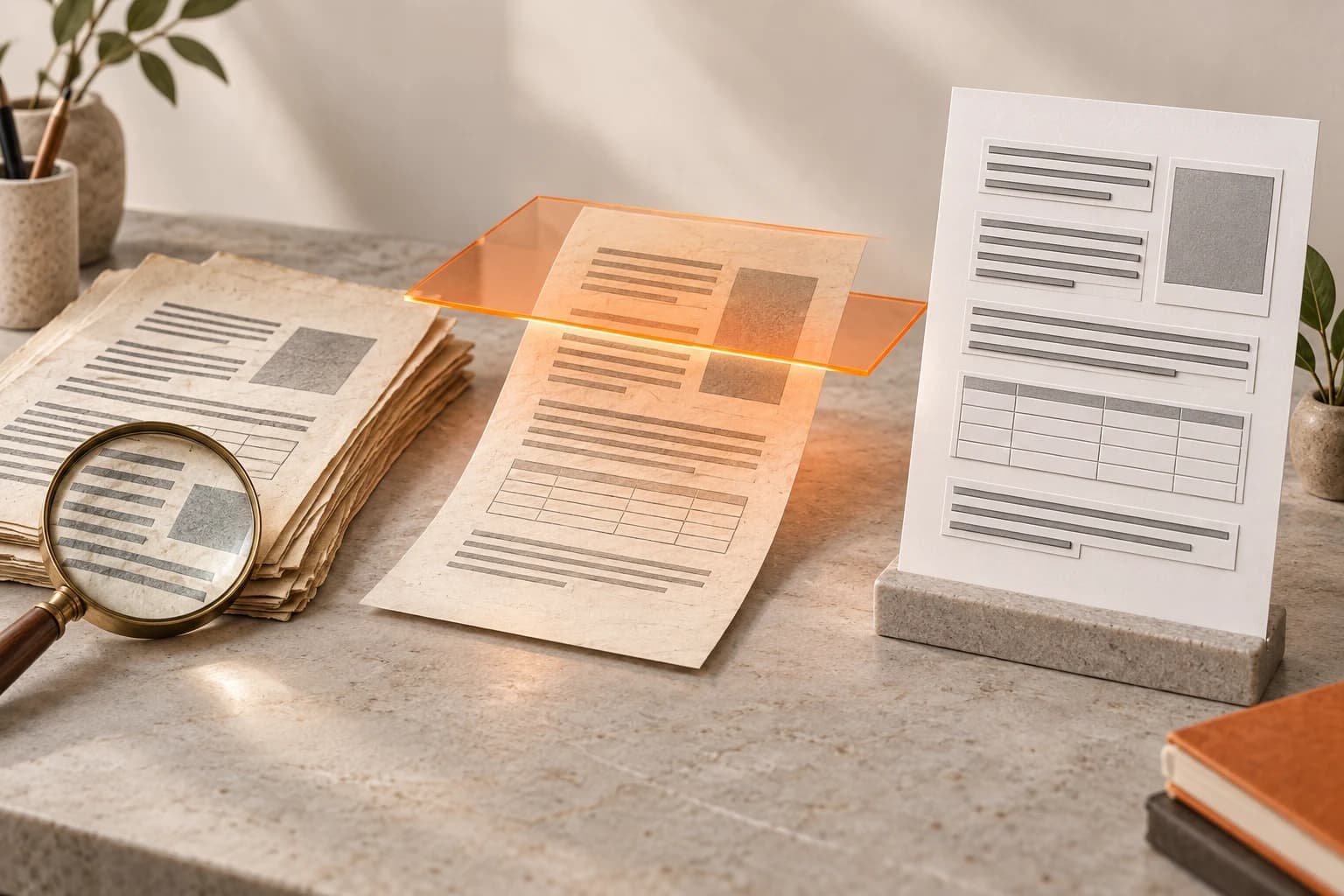
From a scan to a searchable document
Consider an archive of scanned reports. The text is visually present, but the computer may see only page images. OCR recognises characters so you can search terms and work with content without retyping every line. First decide whether you mainly need to consult the archive or reuse the text in new work.
Source quality matters: orientation, sharpness and language affect recognition. Compare results with the original page, paying attention to names, dates, amounts and tables. Finding one word does not prove every character was recognised correctly. Read essential data that will enter the final document carefully.
After recognition, organise pages and decide how to continue: consulting the PDF, making small edits or exporting to a suitable format. Keep the initial material for comparison. This is useful for turning paper documents into reusable information while retaining human checks of OCR results and corrections.
- Recognise text in image-based PDFs.
- Search content and verify essential data.
- Reuse text in supported export formats.
From review to a copy ready to share
Before delivery, read the PDF in the order the recipient will see it. Check attachments, resolved review comments and the meaning of fillable fields. A well-prepared final copy reduces follow-up caused by missing pages, wrong versions or instructions left in the document.
To remove confidential information, use the redaction tool and apply the removals: drawing a rectangle over text is not equivalent. Applied redaction permanently removes the relevant content from the saved copy. Work on a sharing copy, preserving the original for internal work where needed. Properties and metadata need separate checks.
Passwords and permissions configure PDF access. If the process requires a digital signature, use an appropriate certificate and check recipient requirements. These tools support file preparation; they do not automatically give a graphical signature a particular legal status or include an external online signing service. Assess the result against the required document workflow.
- Reorder pages, attachments and review comments.
- Redact the content you need to remove.
- Configure protection and certificate-based signatures when required.

Product specifications
ProductNitro PDF Pro for Windows
Selectable versions14 and 13; version 13 is an earlier release
LicensingPerpetual for the purchased version; upgrades to new major versions are not automatically included
EditText, images and PDF page organisation
ConvertPDF and Microsoft Office formats, images and text, depending on document type
ScansOptical character recognition (OCR)
ReviewComments, highlights, stamps and annotations
FormsCreating and filling PDF form fields
ProtectionPasswords, permissions and content redaction
Signing within PDFsCertificate-based digital signatures, with an appropriate certificate
Windows languageEN
Separate servicesNitro Sign, Nitro subscriptions and online AI features are not automatically included
Technical requirements
Reference requirementsNitro PDF Pro 14 for Windows; verify the supplied build and installer type
Windows for version 1464-bit Windows 11 or Windows 10; the version 14 installation guide specifies Windows 10 version 1809 or later
Windows 11 compatibilityListed in the release notes from version 14.24.1.0 onwards
32-bit systemsNo longer supported from version 14.20, including product and security updates
Processor — version 141.5 GHz or faster
Memory — version 141 GB RAM minimum according to the technical deployment documentation
Disk — version 144.5 GB available, plus space for documents and temporary files
Display — version 141024 × 768 or higher
Windows componentsMicrosoft Visual C++ Redistributable and, for relevant builds, Microsoft Edge WebView2
Office integrationVersion 14 documentation lists Office 2013, 2016 and 2019, 32-bit or 64-bit; Office is a separate product
Version 13 — legacyVersion 14 requirements do not extend to 13. Check Windows compatibility, architecture and update availability for the supplied version 13 build
Installation and licenceAdministrator permissions and Internet connection; installer and activation system must match the licence
Frequently asked questions
How much does it cost?
Nitro PDF Pro 14: £79.99 including VAT. Nitro PDF Pro 13: £69.99. Perpetual licence for the selected version on 1 Windows PC, with an invoice included.
Which versions can I choose?
Choose Nitro PDF Pro 14 or 13 for Windows. Version 13 is an earlier release: choose according to your work environment and build compatibility, which must be checked before purchase.
What does a perpetual licence mean?
The licence covers use of the purchased version under the applicable terms. It does not automatically include new major versions, indefinite support or subscription-based online services.
Are Nitro PDF Pro and Nitro PDF Classic the same product?
No. Nitro distinguishes the perpetual PDF Pro licence available through resellers from Nitro PDF Classic, offered for three years. This page covers PDF Pro 13 and 14.
Does the licence also work on Mac?
This configuration is for Windows. Nitro PDF Pro for Mac is a separate application with requirements and licensing to check separately.
Can I edit a scan?
OCR recognises text in images and makes the document searchable or editable. Accuracy depends on scan quality, language and layout: always check the result.
Are Nitro Sign and AI tools included?
They are not automatically included in the perpetual licence described here. Online signing services, AI tools and Nitro subscription features have separate plans and terms.
Is version 13 compatible with Windows 11?
The documentation reviewed explicitly lists Windows 11 for version 14 from build 14.24.1.0. We do not extend that statement to version 13: the earlier release requires checking the specific configuration.
Will I receive all future updates?
No. Update and support availability depends on the release and the licence's support rights. A perpetual licence is not a subscription with continuous access to new versions.