





































Need BitLocker, Group Policy, Remote Desktop as a host, or Hyper‑V without formatting? If you purchased a genuine key from Licensgo, you can switch from Windows 11 Home to Pro in-place, keeping your data and getting back to work in minutes. In this guide we’ll check activation, make a quick backup, change edition with a valid Pro product key, and resolve the most common errors.
1What Pro unlocks
Windows 11 Pro adds BitLocker drive encryption, the Group Policy Editor, the Remote Desktop host role, Hyper‑V, domain join and advanced device management. For security‑minded users, BitLocker is often the main driver; if you’re weighing encryption options, read our deep dive on full‑disk vs per‑file encryption.
- full‑disk encryption with BitLocker and recovery keys;
- centralised policies with Group Policy for fine‑grained control;
- Remote Desktop host, Hyper‑V, domain join for work.
Some laptops running Home have device encryption enabled. Upgrading to Pro keeps it; plan time to turn on BitLocker after the upgrade if you want to use it.
2Step 1 — Check edition and activation
Go to Settings > System > Activation. Confirm the edition is Windows 11 Home and the status is ‘Active’. If it isn’t active, fix that first. Link your Windows licence to your Microsoft account (Settings > Accounts) to simplify reactivation after any hardware changes.
- sign in with an administrator account;
- ensure you have an Internet connection and enough battery or mains power;
- close heavy apps to speed up the upgrade.
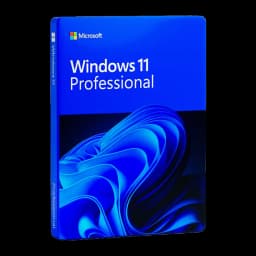
Have a valid Windows 11 Pro product key ready. If you don’t have one, you can purchase a Windows 11 Pro licence with instant delivery and support.
3Step 2 — Make a quick backup
Changing edition keeps files and apps. Still, have a safety net: copy key documents to an external drive or cloud, or create a system image. For a fast plan, follow our guide Practical backups: quick strategies.
4Step 3 — Upgrade to Pro with your key
Open Settings > System > Activation > Change product key. Enter your Windows 11 Pro key purchased from Licensgo, confirm, and let Windows switch edition. The process is automatic and may require a restart. If you still need a key, buy a Windows 11 Pro licence.
- Settings > System > Activation > Change product key;
- paste the 25‑character Windows 11 Pro key; confirm;
- wait for features to be enabled; restart when prompted.
Use only a valid Windows 11 Pro key that matches the edition and region. Avoid generic or trial keys: they won’t activate.
5Step 4 — Timing and restarts
On recent hardware the edition change completes in under 20 minutes. Expect one or two restarts. After signing in, return to Settings > System > Activation to verify Windows 11 Pro is active. Then enable BitLocker, Group Policy or Hyper‑V as needed.
6Fixing the most common errors
The most frequent issues stem from edition mismatches, typos, or activation services. These quick checks usually sort them. For legitimate methods and error handling, see our Pro activation guide (concepts also apply to Windows 11): Activate Windows 10 Pro: legitimate methods and activation error fixes.
- Error 0xC004F050 (invalid key): ensure the key is Windows 11 Pro (not Pro N\/Workstation). Double‑check the 25 characters. Try again after a restart and with a stable connection;
- Error 0x803FA067 (licence mismatch): sign in with a Microsoft account and run the Activation Troubleshooter (Settings > System > Activation > Troubleshoot);
- Edition mismatch: Home Single Language or Country Specific won’t switch to standard Pro; make sure the key exactly matches the target edition;
- Retail vs OEM: use a key type that fits your scenario. For a clear comparison read OEM vs Retail: Windows 11 Pro.
If the switch stalls, restart the PC and re‑enter the key. Temporarily disable any VPN and security tools that filter traffic, then re‑enable them after activation.
7How to roll back and when a reinstall is needed
There’s no ‘Undo’ button from Pro back to Home. To revert, restore your pre‑upgrade image or perform a clean installation of Windows 11 Home and activate it with a valid key. If you need to purchase Home, get a Windows 11 Home licence.
A clean install is advisable only if system files are corrupted, the device is on an unsupported Home Single Language path, or activation fails after all checks.
After upgrading to Pro, export your BitLocker recovery keys and note down your product key for any future audits.