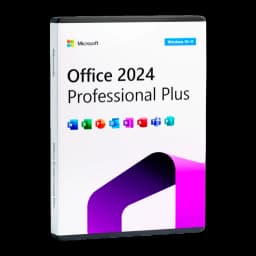








































You've just bought Microsoft Office 2024 Professional Plus from Licensgo and received your product key by email. Good news: activation takes only a few minutes. This guide walks you through every step, from the download to confirming your licence — with the exact procedure we use for the Professional Plus edition.
1What you receive after purchase
Right after your payment is confirmed we send you an email with everything you need to get started.
- your 25-character product key;
- the download link for the Office installer;
- the complete activation guide (PDF).
The Professional Plus key stays tied to the device, so you'll need it again if you reinstall. Save it in your documents or a password manager.
2Step 1 — Download and install Office
Before you start, uninstall any previous version or trial of Office or Microsoft 365 from Settings > Apps — leaving an old copy in place is the most common cause of activation problems.
Then open the download link from the email and run the installer. For Office 2024 Professional Plus it starts with a double click and installs automatically — no Microsoft account needed at this stage.
3Step 2 — Activate with your product key
Open Word and go to File > Account > Activate Product. If it asks you to sign in, choose ‘I don't want to sign in or create an account’: the Professional Plus edition is activated with the key, not with a Microsoft account. Enter your 25-character key, select telephone activation, then choose United Kingdom.
Office shows an Installation ID. Open visualsupport.microsoft.com, pass the CAPTCHA, enter that Installation ID (if it asks how many PCs, enter 0) and copy the Confirmation ID you get back into Office. Alternatively, you can call the freephone number that Office shows for the United Kingdom.
4Step 3 — Check the activation
Open any Office app, go to File > Account and check that it shows ‘Product Activated’. From then on, Office is fully functional, with no time limit.
5Bought Home & Business instead?
The Home & Business edition works differently: those keys are tied to a Microsoft account. You redeem them at office.com/setup, sign in with a Microsoft account, then download and install Office from account.microsoft.com — with no phone step. If that's your product, follow the guide attached to your email.
6If the key doesn't work
It rarely happens, but if activation fails here's what to check:
- make sure you typed the key without extra spaces;
- check you chose the right version — Office 2024, not Microsoft 365;
- if Word keeps asking you to sign in, close the prompt and pick ‘I don't want to sign in or create an account’;
- if the problem persists, contact us via our Contact page: we verify every key before delivery and guarantee a replacement or a refund within 24 hours.
7In short
Activating Office 2024 Professional Plus is simple: uninstall old versions, install from the download link, then activate with your key by telephone or through Visual Support — without a Microsoft account. The licence is permanent, valid for one device and tied to that device. If in doubt, our support team is here to help.