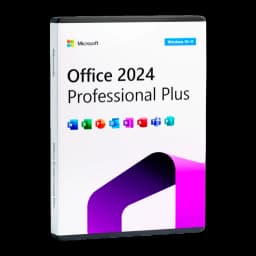








































This quick guide takes you from your Licensgo email to installing and activating Microsoft Office 2024 Professional Plus in about 5 minutes. Open the email with your Office 2024 licence: it contains your 25-character product key, the download link (.exe) and the PDF guide. If you purchased a Microsoft Office 2024 Professional Plus licence, follow the steps below; the alternative telephone activation procedure is at the end.
1Step 0 — What you receive in the Licensgo email
The email with your Office 2024 licence contains three essentials: your 25-character product key, the direct .exe download link (double-click to install) and the PDF guide. Keep the email until activation is complete.
If you bought a different SKU, check the product page: for Home & Business see Microsoft Office 2024 Home & Business or for an older perpetual licence see Microsoft Office 2021 Professional Plus.
2Step 1 — Uninstall old versions of Office or any Microsoft 365 trial
Before installing, remove any existing Office installations or Microsoft 365 trial copies. In Windows, go to Settings › Apps, find Microsoft Office or Microsoft 365 and choose Uninstall. Leftover trial installations are the number one cause of activation errors.
3Step 2 — Install and activate with the product key
Run the .exe file from your email by double-clicking it. When installation finishes, open Microsoft Word, go to File › Account and select ‘Activate Product’. If prompted to sign in, choose ‘I don't want to sign in or create an account’. Paste the 25-character product key exactly and confirm.
Use copy‑and‑paste to avoid typing errors. The installer is the standard Office setup and installs automatically with default settings; no extra configuration is normally required.
4Step 3 — Verify activation
After activation, check File › Account in any Office app. It should show ‘Product Activated’ or an equivalent confirmation. If it does, you're done.
5Key not working? 3 quick checks
If the key is rejected, run these three checks first — they solve the majority of issues.
- make sure you copied only the 25 characters, without extra spaces before or after;
- check that you don't have a preinstalled Microsoft 365 trial — the trial blocks activation with a key, so uninstall it and install from the link in the email;
- activate using the product key procedure, rather than a Microsoft account: close the sign-in window and choose ‘I don't want to sign in or create an account’.
6Alternative — Telephone activation
If online activation fails, go to File › Account › Activate Product, choose ‘I want to activate the software by telephone’ and select United Kingdom. You will then see an Installation ID (9 groups of 7 digits).
Contact Licensgo support by email or through our contact form and send us the Installation ID; we will reply with the Confirmation ID, which you enter to complete activation.
The licence is perpetual for 1 device and is not transferable after activation; Licensgo support is available in English by email or through our contact form.